P
PickerSpin
Virtual Six-Sided Dice

Dice Roller — Roll Virtual Dice Online

By Ali · Last updated

Choose how many dice you need, tap Roll, and get instant animated results with the total. Free, fast, and great for any board game or quick decision.

Dice Count:
Total Sum: —

or press Space

Roll History
No rolls yet…
100%
Free, no sign-up
1-6
Dice at once
6
Sides per die
No
Sign-up required

Dice Roller: How Can You Roll Dice Online?

A dice roller generates numbered die faces online so you can roll for a game, read individual results, and check their total without a physical set.

For mobile tabletop play, begin with the rule you need to resolve, rather than the animation. A movement rule may ask for a sum; another game may care about matching faces. Decide which interpretation applies before pressing the button, especially when several players share the same screen.

On this dice roller, choose one to six ordinary six-sided dice. The dice roller shows the completed roll and keeps the latest ten results. Multiple digital applications share that basic purpose. Check service-specific limits first. That limited scope makes the controls straightforward: select the count, roll, and use the outcome according to your agreed rules.
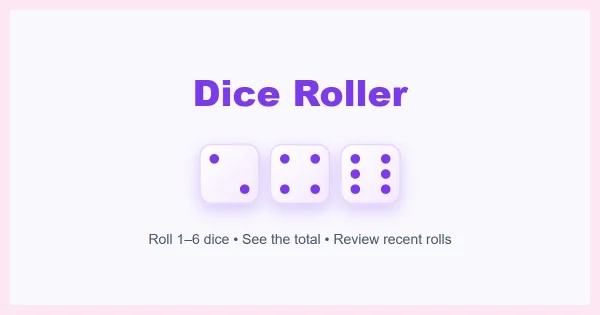
dice roller
Standard six-sided dice from the online dice roller.

How Do You Roll the Right Number of Dice?

To roll the right number of dice, select the count required by your game before starting the roll.

Changing the count prepares the display; the placeholder faces are not a completed turn. Wait for the final result after using the button. Repeated clicks during an active animation do not create additional recorded rolls on this dice roller.

  1. Choose the count: Select one through six dice; the rules determine your count to match the instruction you are following.
  2. Start the roll: Click Roll Dice, or press Space when you are not typing in an input field.
  3. Read the outcome: Check the faces, Total Sum, and the newest history entry as a single record before the next player takes a turn.

These steps keep the decision and generated result separate.

What Do d6 and 2d6 Mean?

In dice notation, d6 means a six-sided die, while 2d6 means rolling two six-sided dice together.

The leading number specifies the count; the number afterward identifies the sides. Both parts answer a setup question. Read both parts before choosing a dice roller. A pair of ordinary dice cannot replace every other die type simply because some possible totals overlap.

This dice roller supports standard cubes rather than a field for typed expressions. Select two dice when a rule calls for 2d6, then inspect the final sum or the separate values as required. A modifier belongs to the game calculation: apply that adjustment yourself after reading the result. The dice roller does not automatically interpret a formula, apply a character bonus, or choose which face to keep.

Why Do Dice Totals Differ from Individual Faces?

A dice total describes the sum of the faces, while an individual face describes one die’s result.

The distinction changes how a dice roller result should be used. A game might ask for a pair, a specific face, or a movement total. Those are different questions even when the same dice provide the numbers. Read the original instruction instead of treating every displayed sum as the only meaningful outcome.

Result viewWhat it tells youUseful when
Individual facesEach die’s separate valueChecking matches or counting a particular face
Total SumAll completed face values added togetherFollowing an addition or movement rule

The distribution favors middle totals, which have more combinations when ordinary dice are added; equal face chances do not make every sum equally likely.

When Does a Dice Roller Help During Play?

A dice roller helps when a game or activity needs ordinary numbered outcomes and a visible result.

For board games, keep the device within view and agree on the count before rolling. The screen can replace missing physical dice, but the players still handle turns, scoring, and any special instructions. Decide how to deal with accidental rolls before a disputed outcome appears.

These activities serve different groups. For classroom work, ask learners to predict results, record observations, and compare the faces with their totals. A short history is useful for reviewing recent examples, not for storing an entire probability experiment. For quick decisions, map available outcomes to acceptable choices first. More elaborate roleplaying procedures may require a tool with different sides or additional controls.

Which Features Should You Check Before Choosing a Roller?

Choose a dice roller by checking the controls your activity actually needs, rather than assuming every service offers the same features.

Some specialist services provide shared rooms, chat, private records, or published logs. Others accept expressions with modifiers, optionally saving lines or results. These advanced capabilities differ; behavior varies between services. Those capabilities are separate from animated dice. A simple page can be appropriate when the group only needs ordinary faces and a sum.

Here, the available features are a dice count, rolling animation, total, recent history, Clear, and a keyboard shortcut. There is no room system, automatic scoring, sound setting, or selective reroll control. If your procedure depends on keeping particular dice, track those values outside the tool and roll only the remaining count. Check the feature boundary first.

Simple Steps

How to Use the Online Dice Roller

Roll 1 to 6 virtual dice in three easy steps.

1️⃣

1. Choose Dice Count

Select how many dice you want to roll, from 1 up to 6 dice at once.

2️⃣

2. Roll the Dice

Click Roll Dice or press Space for an instant animated roll.

3️⃣

3. See Your Total

Each die face and the cumulative sum total are displayed instantly on screen.

Real-World Impact

Who Uses This Dice Roller?

Real ways people use our virtual dice every day.

🎲

Board Gamers & Tabletop Players

Lost a die from Monopoly, Catan, or Yahtzee? Roll right on your phone or tablet without interrupting game night.

📚

Math Teachers & Classrooms

Teach probability, addition, and statistics on smartboards without loose plastic dice rolling across the floor.

🎮

Streamers & Giveaways

Roll on screen during live broadcasts to decide challenge modifiers, penalty rounds, or prize winners.

⚡

Quick Daily Decisions

Assign numbers to 6 tasks or chores and let the die roll decide what you tackle first.

Got Questions?

Dice Roller Frequently Asked Questions

Everything you need to know about rolling dice on PickerSpin.

This dice roller uses Math.random(), the browser’s pseudorandom generator, to select each final face.

Each generated value is mapped into the standard face range using equal-width intervals. The animation is presentation rather than a physical simulation, and the appearance of bouncing or changing faces does not certify a selection method. Other services describe different generators, so their claims should not be transferred to this dice roller. Repeated values can occur in an ordinary sequence, and previous outcomes are not used here to force a corrective result. Use the dice roller for casual games and demonstrations, keeping experimental records separately instead of treating a small visible sample as proof of a generator’s quality. Read about pseudorandom number generators.

You can roll several dice together on this dice roller by selecting a count from one to six before pressing Roll Dice.

The completed record includes all selected dice, which receive new final values in the completed roll; the controls do not preserve an individual face for a later turn. The history remembers the component values and the sum, making the result easier to review after the animation finishes. If a rule asks you to keep some dice, write those values down and select only the count still needed. A larger count changes the possible totals, so confirm the required setup before rolling rather than interpreting extra dice after seeing what appeared.

You can use this dice roller in a JavaScript-enabled browser on a phone, tablet, or desktop computer.

Touch users can begin without installing additional software. On a touch screen, select the count and tap Roll Dice, then wait for the final faces and total before continuing the activity. Different layouts affect presentation. The dice wrap inside the tool area, although a smaller display may require scrolling to inspect recent history. On a computer, Space starts the same action when you are not typing in an input or text area. Browser access does not mean settings automatically follow you across devices; use the current screen as the shared reference and check the selected count whenever another player takes over.

This dice roller restores your selected count and recent history after a refresh when local browser storage is available.

Saving a preference is different from synchronization. The saved record belongs to the current browser and site rather than an account that synchronizes across devices. Clearing site data, switching browsers, or using a private session may remove or separate those preferences, and restrictive browser settings can prevent saving altogether. Clear removes the recent-history entries while leaving the selected count available for the next roll. The dice show one-pip faces when the page loads, so read a restored entry as an earlier result and press Roll Dice when you need a new outcome for the current turn.

This dice roller needs JavaScript to generate faces, calculate totals, update history, and respond to its interactive controls.

The normal interface can produce results only with scripting; otherwise controls are unavailable. If the page text appears but rolling does not work, check whether scripting is disabled in the browser or blocked for the site. Wait for a current animation to finish before assuming the next click was ignored, because repeated triggers are deliberately guarded during a roll. Refresh the page after correcting a browser restriction, then select the count you intend to use and try one deliberate roll. A visible heading or article alone does not confirm that the interactive code has loaded successfully; check the completed faces and the newest history entry.

You can use this dice roller for board games and classroom activities whenever the rules require ordinary six-sided dice within the available count.

The practical question is why those requirements matter; explain any mismatch before play. The relevant question is whether the game’s required dice match the tool, not whether a familiar game name appears beside the button. Some games need other sides, automatic modifiers, held faces, or an external scorecard, and this page does not supply those features. For a compatible game, agree on the count and interpretation, roll once for the current instruction, and read the completed outcome before proceeding. Rule concerns remain separate. The tool supplies values and a sum; the players remain responsible for applying rules consistently throughout the activity.

About Us

PickerSpin offers browser-based tools for everyday games and choices. This dice roller provides standard six-sided dice without an account. Read more.

Privacy Policy

Dice rolls run in your browser. Your selected dice count and last ten rolls are saved locally when storage is available; Clear removes the saved history. Read more.